Like many people, I never paid much attention to the hidden files accumulating on my computer. As long as my PC turned on and basic programs worked, I assumed everything was fine. But over time, I started noticing warning signs—slower performance, limited storage, and random lag while opening applications.
My computer kept showing low disk space notifications, and I couldn’t figure out what was consuming so much storage. I had already deleted old downloads and unnecessary media files, yet the available space barely changed. That’s when I decided to try Advanced SystemCare, a trusted PC and Windows cleaner that promised to detect hidden junk files using AI-powered scanning. What happened next genuinely surprised me—I reclaimed nearly 2.5GB of storage in just a few minutes.
Why Hidden Junk Files Were Draining My Storage
Before using Advanced SystemCare, I thought storage issues were only caused by obvious files like photos, videos, or downloads. But I quickly realized the real problem was hidden junk quietly piling up in the background. These included:
- Temporary Files: Programs leave behind temporary data even after tasks are finished.
- Cache Files: Browsers and apps store cache that isn’t always cleaned automatically.
- Installation Leftovers: Old installers and update files remain long after use.
- Broken Shortcuts and Logs: Unused system traces take up valuable space.
Individually, these files may seem small, but over months or years, they added up to gigabytes of wasted storage on my system.
How I Felt About the Advanced SystemCare at First
I wanted a simple solution that didn’t require hours of manually searching through folders. That’s when I found Advanced SystemCare. What immediately drew me in was its AI-powered scan. Instead of me guessing what to delete, the software analyzed my system and automatically detected unnecessary files. It felt like a reliable combination of a Windows cleaner and a PC optimizer, which was exactly what I needed.
My Step-by-Step Cleanup Experience
Using Advanced SystemCare turned out to be surprisingly easy:
Step 1: Install and Open the Program
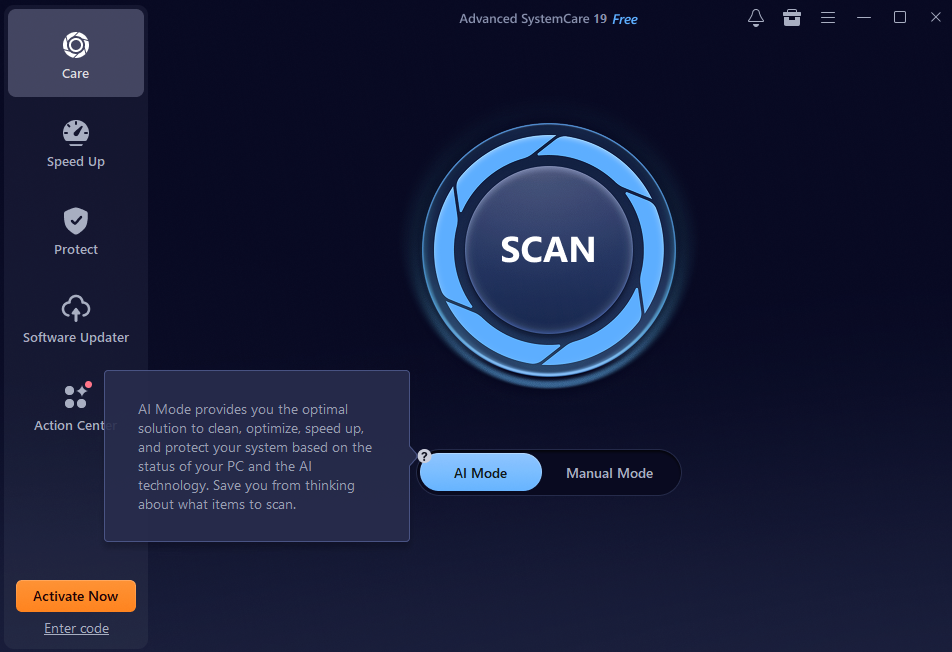
The installation was straightforward and took just a few minutes. After launching it, I found a clean, organized interface that was very easy to navigate.
Step 2: Running the AI Scan
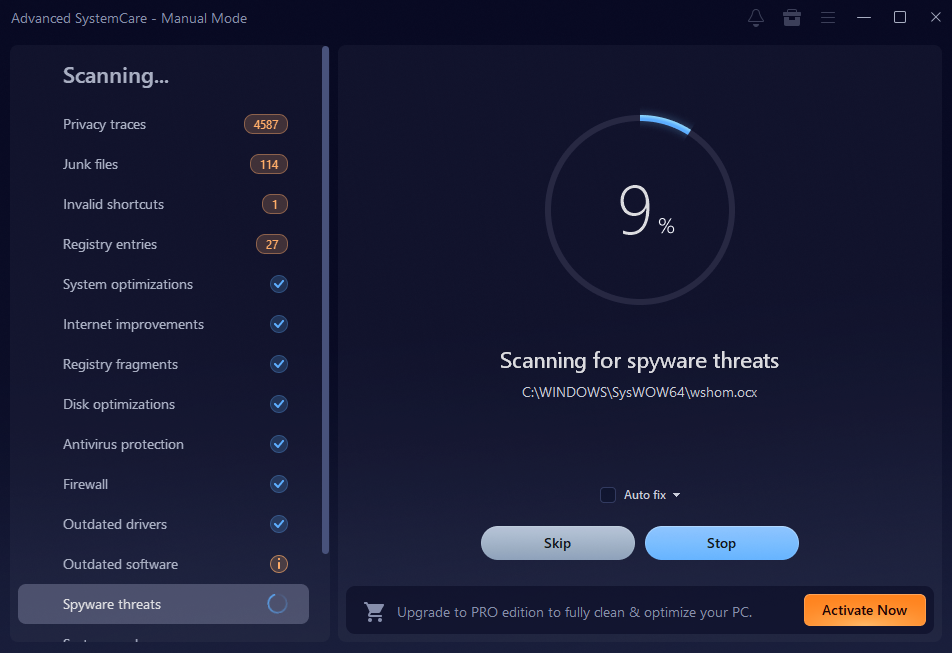
I clicked the scan button and watched as this Windows cleaner analyzed my system. Within minutes, it identified: temporary files, privacy traces, browser cache, invalid shortcuts, leftover update files, and hidden junk consuming disk space. I was shocked to see just how much unnecessary data had accumulated over time.
Step 3: One-Click Cleanup and 2.5GB of Space Recovered
After reviewing the results, I clicked Fix, and the software cleaned everything automatically. I didn’t have to manually adjust anything. When the cleanup finished, I checked my storage. To my surprise, nearly 2.5GB of disk space had been reclaimed. The difference was immediate:
- More Available Storage: I finally had room for important files and updates.
- Faster Performance: Programs opened noticeably faster.
- Better Responsiveness: My system felt smoother overall.
- Less Frustration: No more annoying low-storage warnings.
It honestly felt like my PC had been refreshed.
Why AI Cleaning Made a Difference
Before using Advanced SystemCare, I assumed disk cleanup meant manually searching folders and guessing what could be deleted. The AI-powered approach completely changed the experience. The software intelligently:
- Identifies hidden junk files
- Removes unnecessary system clutter
- Optimizes storage usage
- Detects performance-affecting issues
This automation saved me time and reduced the risk of accidentally deleting important files.
More Than Just a PC Cleaner
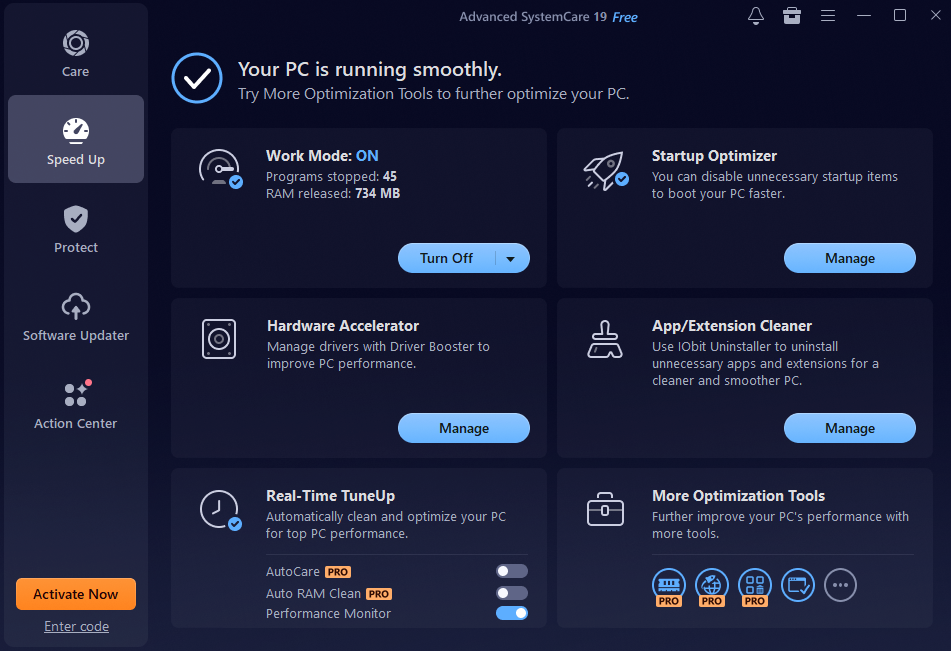
Although I initially wanted extra storage, I quickly discovered that Advanced SystemCare does more than a PC cleaner. It also:
- Optimizes Startup: Reduces boot time
- Cleans Privacy Traces: Removes browsing history and sensitive data
- Cleans the Registry: Fixes outdated entries affecting stability
- Monitors Performance: Tracks CPU, memory, and disk usage in real time
These features made ongoing system maintenance effortless.
Final Thoughts
I honestly didn’t expect hidden junk files to consume so much storage. Recovering nearly 2.5GB in just minutes was impressive, especially since the process required almost no effort.
Using Advanced SystemCare made cleaning my system simple and stress-free. It removed years of hidden clutter while improving performance. If your computer feels slow or constantly runs low on storage, hidden junk files may be the culprit. In my experience, an AI-powered cleanup can be enough to restore your PC’s speed and efficiency.