
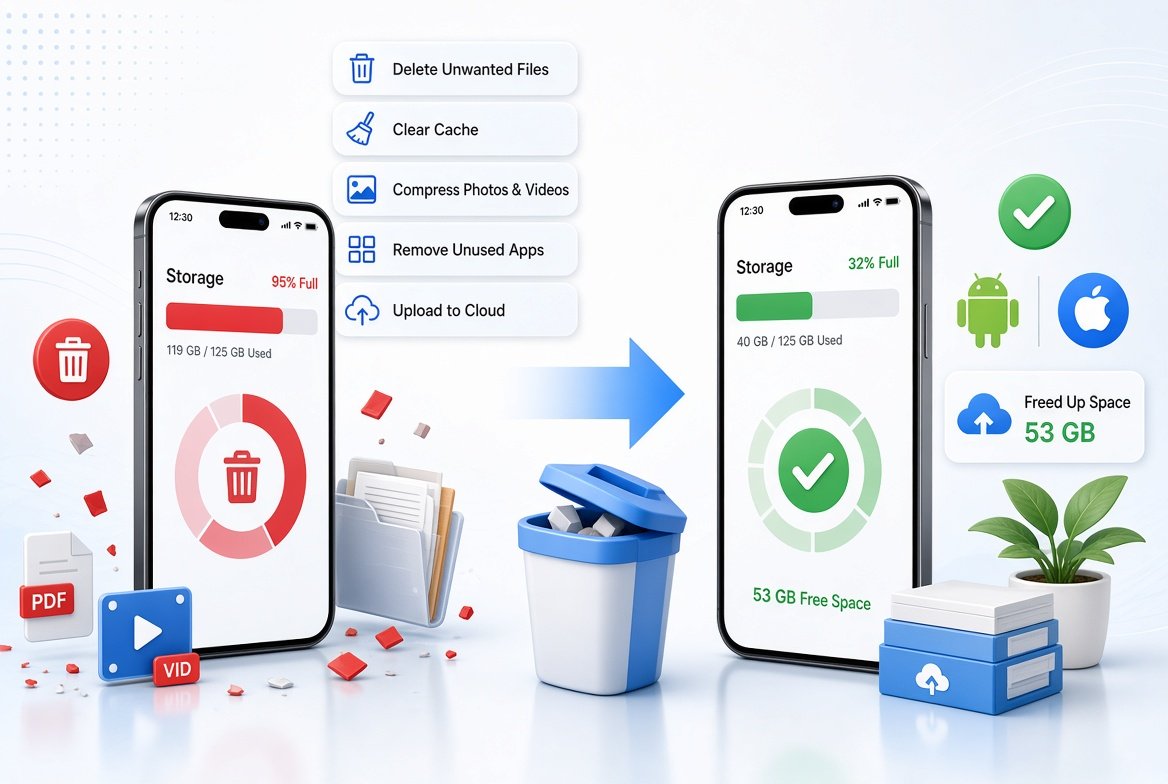
“Storage almost full” is one of the most annoying messages on a phone. It stops you from taking photos, updating apps and sometimes even receiving messages. The good news is that you can usually free up several GB in less than 15 minutes without losing anything important.
This guide shows 12 easy ways to free up phone storage on both Android and iPhone. Menu names can be a little different on each brand and software version, but the idea is the same.
Step 1: Find out what is using your storage
Before you delete anything, check what is taking the most space.
- Android: open Settings > Storage. You will see a breakdown of apps, photos, videos, audio and other files.
- iPhone: open Settings > General > iPhone Storage. It lists your apps from biggest to smallest and shows suggestions.
In most phones, photos, videos, messaging apps and games take the biggest share.
12 ways to free up phone storage
1. Delete apps you do not use
Go through your app list and remove apps you have not opened in months. Games and social apps can take a lot of space. On iPhone you can use Offload Unused Apps, which removes the app but keeps its data, so it comes back when you reinstall it.
2. Clear app cache (Android)
Apps store temporary files called cache. Open Settings > Apps, pick a big app such as a browser or social app, then tap Storage > Clear cache. Do not tap “Clear data” unless you want to reset the app and log out.
3. Back up photos and videos, then delete them from the phone
Photos and videos are the biggest space eaters. Back them up to a cloud service such as Google Photos or iCloud, or copy them to your computer. After you confirm the backup is complete, use the “free up space” option in your photos app, or delete the local copies.
4. Delete large videos first
One 10-minute video can use more space than hundreds of photos. Sort your gallery by size if your phone allows it, or check the large files section in your Storage settings, and remove old videos that you do not need. If you record a lot of video, it also helps to understand how video formats differ, so read our guide on whether MOV or MP4 is better.
5. Clean WhatsApp media
WhatsApp saves every photo, video, voice note and document you receive. Open WhatsApp, go to Settings > Storage and data > Manage storage. There you can see large files and chats that use the most space, and delete the ones you do not need. You can also turn off auto-download for media in the same settings area.
6. Empty the “Recently Deleted” or “Trash” folder
When you delete a photo, many phones keep it for around 30 days before removing it for good. If you need space right now, open the Recently Deleted (iPhone) or Trash/Bin (Android gallery or Google Photos) and empty it. Be sure you do not need those photos anymore, because this cannot be undone.
7. Remove downloaded files and old documents
Open your Files app or Downloads folder. You will often find old PDFs, APK files, installers and forwarded documents that you no longer need.
8. Delete offline music, videos and podcasts
Streaming apps can store songs and shows for offline use. Check the download settings of your music and video apps and remove downloads you do not listen to or watch anymore.
9. Clear your browser data
Browsers save cache, history and site data. In your browser settings, clear cached images and files. This usually frees a few hundred MB.
10. Check your messages for big attachments
On iPhone, Settings > General > iPhone Storage > Messages shows large photos and videos sent in chats, and lets you review and delete them. On Android, open your messaging app and check for large media in old conversations.
11. Move files to an SD card or cloud (if supported)
If your Android phone has an SD card slot, you can move photos, videos and some files to the card. Otherwise use cloud storage for documents and large files, and keep only what you need on the phone.
12. Update your phone and restart it
Restarting clears some temporary files. Updating also helps, but keep in mind that a big update needs free space to install. So free up some space first.
How much free space should you keep?
There is no fixed rule, but many people try to keep at least 10-15% of storage free so the phone runs smoothly and has space for updates and new photos. If your phone has 128 GB, that means roughly 13-19 GB free.
Things not to do
- Do not delete system files or unknown folders. This can break apps or the phone.
- Do not delete photos before you confirm your backup. Open the backup, check that the photos are there, and only then remove them from the phone.
- Do not install “cleaner” or “booster” apps from unknown sources. Many show ads or ask for risky permissions, and your phone’s own Storage settings do the same job.
Frequently asked questions
Why does my phone storage get full so fast?
Photos, videos, app updates, messaging media and cache pile up over time. Apps also grow with every update.
Does clearing cache delete my data?
No. Clearing cache removes temporary files only. Your accounts, photos and settings stay safe. “Clear data” is different, because it resets the app.
Will deleting photos from my phone delete them from the cloud?
It depends on the app. In some apps, deleting a synced photo on your phone also removes it from the cloud. Read the message on the screen before you confirm, and use the app’s “free up space” option when available.
How can I free up storage without deleting photos?
Offload unused apps, clear cache, clean WhatsApp media, delete big downloads and move files to cloud storage or an SD card.
Is it better to buy more storage or clean the phone?
Cleaning is free and often enough. If you shoot lots of videos, a phone with more storage or a cloud plan can save you time later.
Final thoughts
Start with the Storage screen, back up your photos, and clean the biggest items first. A small cleaning once a month keeps your phone fast. For more phone and app guides, visit our Tech section.